
Example - Using Ask AI with a Website
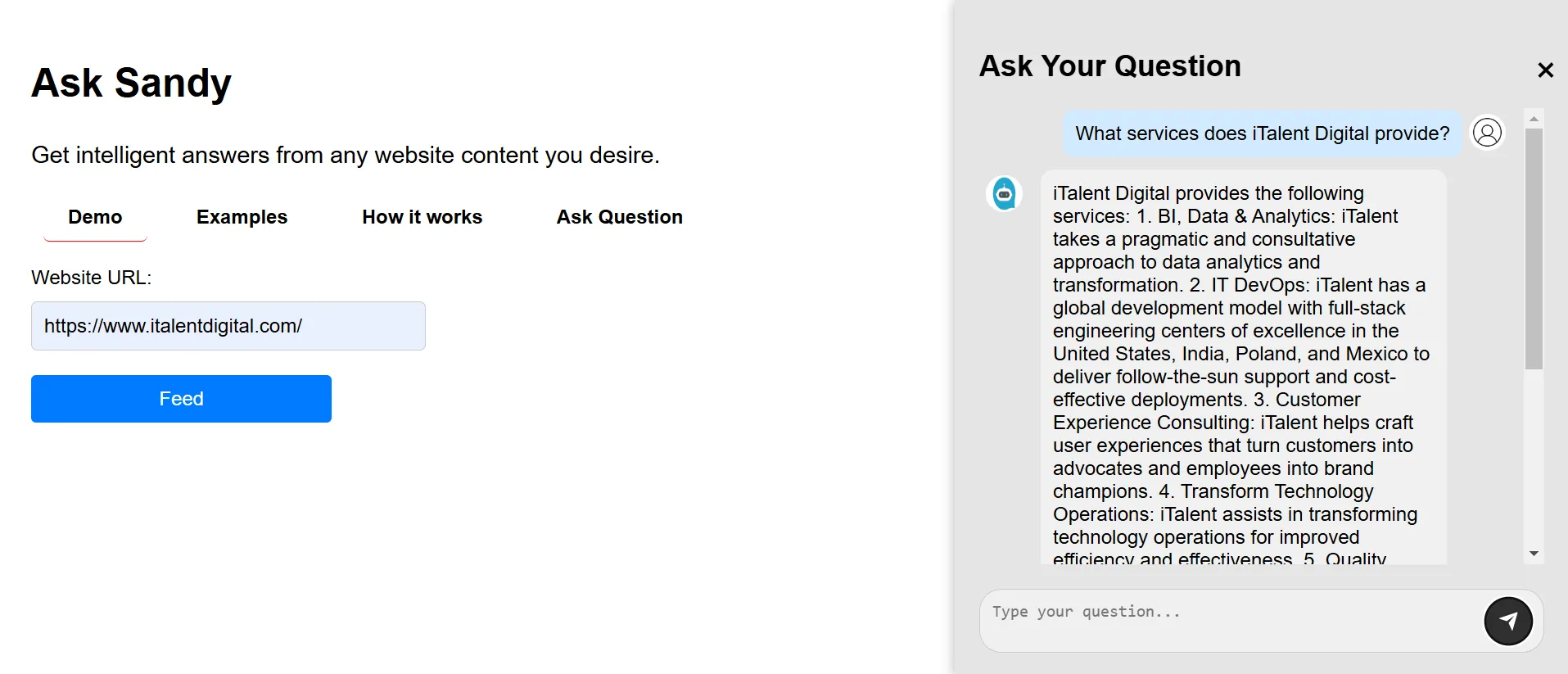
Example
In this example, we’ll walk through how Ask AI can help you gather and interact with information from a website, using https://www.italentdigital.com/ as an example.
Step-by-Step Example
-
Starting with the Website URL
- Enter
https://www.italentdigital.com/in the Website URL field in Ask AI. - Press the Feed Button: Click on the Feed button to start data extraction.
- This initiates the data extraction process, where Ask AI begins to gather content from the site.
- Enter
-
Data Crawling Progress
- When data crawling begins, you’ll see a progress notification:
- 25% Complete: At this point, Ask AI has successfully begun crawling the content of
https://www.italentdigital.com/. It continues retrieving relevant information from the website’s pages.
- 25% Complete: At this point, Ask AI has successfully begun crawling the content of
- When data crawling begins, you’ll see a progress notification:
-
Chunking and Storing Data in the Database
- As the process reaches 50%, it indicates that the extracted data is now being chunked and vectorized. This allows the information to be stored efficiently for quick retrieval.
-
Ask Questions
- When the progress bar shows 100% completion, all the data is prepared, and you can now ask questions.
- Navigate to the Ask Question tab and enter any questions you have. For example:
- “What services does iTalent Digital provide?”
- “What industries does iTalent Digital specialize in?”
Ask AI will retrieve answers based on the stored content, allowing you to gain insights directly from the website’s information.
This example demonstrates how Ask AI manages each step, making it easy to interact with and understand complex information from a website.